

Group reports and control
Stock across the group, in one report
In stock, committed, ordered and available, for every company and warehouse.
What it does
The branch inventory report lists the group's items in every company, by warehouse or in summary, and filters by item group.
When you need it: A sales rep sells stock held in a sister company's warehouse.
How it works
- In SAP Business One, open Inventory › Inventory Reports › Branch Inventory in Warehouse Report.
- Narrow the run if you need to: "Branch Code" picks particular companies, "Code" particular items and "Item Group" one group or a range of groups. A filter left empty takes everything.
- Pick the "View". The summary gives one line per item with the group's totals; the detail breaks each item down company by company, down to the warehouses.
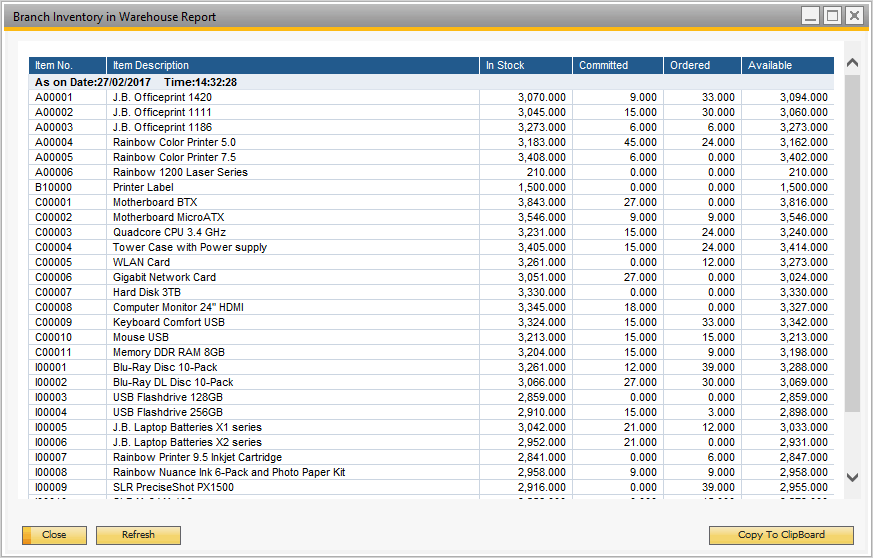
- Choose "OK", and in the report window choose "Refresh". Intercompany then reads the current stock from each company's database.
- Read the four quantity columns per item: "In Stock", "Committed", "Ordered" and "Available".
Set it up
There is nothing to switch on: the report arrives with the Intercompany add-on in each branch company. What decides its content is the item master. Only items with "Global Item" ticked in the "Item Master Data" window are counted, so the report covers the items the group shares between its companies, not each company's local items.
Since: Version 57 (September 2026): the "Item Group" filter, for a single group or several in a row.
Good to know
- The figures are real-time. Each refresh shows the stock position at that moment, not a copy taken overnight.
- Keep special characters such as ! @ # & * : ; out of the codes and descriptions of global items. The guide warns against them, and our list of known limitations names an ampersand in a description as a cause of an error in this report.
- Version 57 also corrected a fault where the report would not show when an item description held special characters.
- The data can leave the window through "Export to CSV" or "Copy to Clipboard".