

Administration and health check
Implementation and copy wizards
Set up faster with wizards.
What it does
Implementation wizards and copy wizards in the console speed up the first set-up and adding companies.
When you need it: Adding a sixth company by copying the fifth.
How it works
- In each company, the "Intercompany Initialization Wizard" (Administration › Intercompany Implementation Wizard) leads through the starting settings. For SAP Business One settings it opens the right window and marks the fields concerned in green.
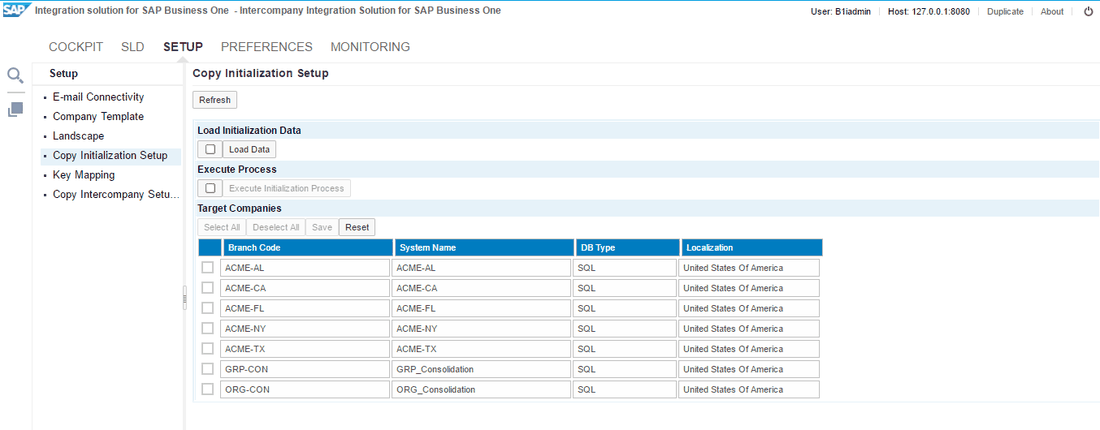
- To do the same for all companies at once, open Setup › Copy Initialization Setup in the console and press "Load Data". The steps then show each company's current values with a proposal: decimal places, freight management, currencies (missing currency codes are created), the encryption key, the B1i server details and the messaging setup. Tick what should be applied, narrow it with "Manage Target Companies" if needed, and press "Execute Initialization Process".
- After key mapping, Setup › Copy Intercompany Setups copies one company's set-up to one or many others: general settings, users with their alert and authorisation settings, data distribution templates, partner group control accounts, branch and default accounts, account classification, branch partners, serial and batch settings, and consolidation account mapping.
- In SAP Business One, the "Intercompany Setup Wizard" (head office and branches) and the "Intercompany Consolidation Setup Wizard" (consolidation companies) cover the remaining set-ups.
- "Set BP to Global BP" and "Set Item to Global Item" turn many existing partners or items into global ones in one step, and they are replicated.
Set it up
All wizards in SAP Business One sit under Administration › Intercompany Implementation Wizard; the copy tools sit under Setup in the console. Both copy tools show a summary and a detail view of the run, mark each task Success or Failure, and offer "Retry" once every task has run; "Reset" clears their queues.
Since: Intercompany 2.0 patch level 23: Copy Initialization Setup, Copy Intercompany Setups and the template company.
Good to know
- The source of Copy Intercompany Setups may be any branch or template company; key mapping must be complete before you run it.
- A record that fails during copying is skipped and the next one is processed; the reasons are listed in the results.
- Users that the copy creates in a target company get a default password that must be changed at first logon.
- For new subsidiaries, keep a template company: back it up, restore it under the new name, then register, deploy and map it like any branch.
- Microsoft Excel tools under Administration › Intercompany Tools fill branch accounts, account classification and consolidation account mapping from templates.
Also in Administration and health check
- Landscapes: the group, set up as one
- Key mapping between companies
- Companies on many servers
- Intercompany with MultiBranch
- Every message between companies, logged
- An email when something fails
- The cockpit: everything on one screen
- The system health check
- A support ticket from inside Intercompany
- Licence reports and your own wording