

Master data replication
Company templates: decide what each company receives
Configure the exact objects and fields that go to each company.
What it does
A company template lists the master-data objects and the fields copied to a company. Local fields stay local; shared fields stay the same. New address fields and item cost can be added to the template.
How it works
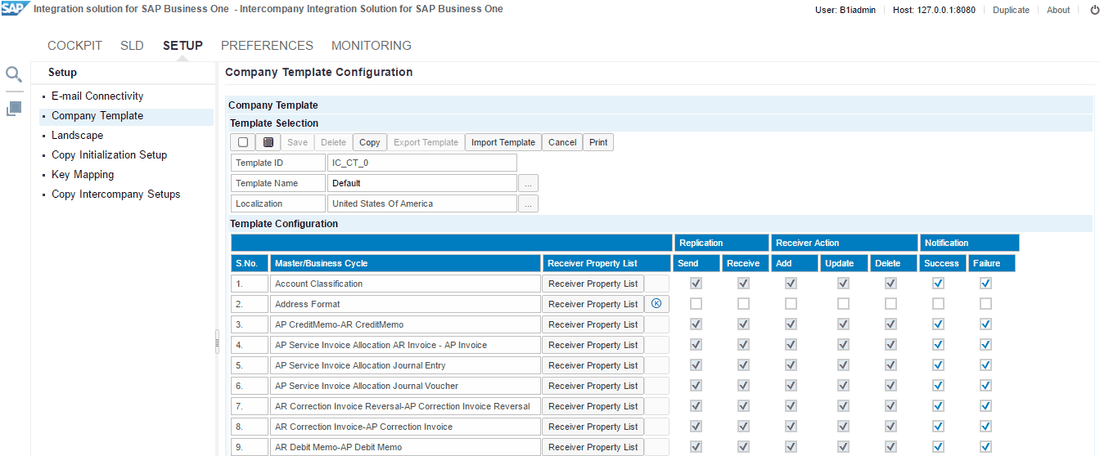
- In the Administration Console choose Setup › Company Template. Pick the "Default" template for a country that Intercompany localises, or the "General" template for any other country; for the default one, choose the localisation as well.
- The delivered templates cannot be changed. Press "Copy", or tick any box and accept the offer, and work on your own copy.
- For each master or business cycle, tick "Send" where this company is a source and "Receive" where it takes the data. Then choose the receiver actions "Add", "Update" and "Delete", and whether "Success" and "Failure" notifications are wanted.
- Press "Receiver Property List" on a row to see the fields of that object and tick the ones to copy. Mandatory fields are ticked for you.
- Save. On the landscape page, open each company's details, choose this template in "Company Template", and deploy.
Set it up
The template carries an ID, a name and its localisation. "Configuration Status" turns green once properties are set, "Consistency Check" tests the template, and "Export Template" and "Import Template" keep a saved copy you can load again. "Print" lists the settings for review. Appendix II of the administrator's guide shows, object by object, which fields the US default template copies and which of them are mandatory.
Since: Version 57 (September 2026): the fields "Address2S", "Address3S", "Address2B" and "Address3B" were added for documents, and "AvgStdPrice" on items, so the cost of non-inventory items can be copied.
Good to know
- Linked masters come along. Tick the address format on the country master and the address format master is selected too; the house bank master asks to switch on the bank master before it can receive. Unticking a linked field does not clear that master again; you do that yourself.
- Ticking a field of a sub-object, such as a partner's addresses or contact persons, also ticks that sub-object's mandatory fields.
- "Update" or "Delete" switches on "Add" and "Receive" with it.
- Switching off "Receive" or "Add" saves the template first and lists, in "Linked Object and Properties Configuration", what will be disabled; "Rollback" restores it.
Sources
Video
Also in Master data replication
- More than 80 kinds of master data, shared
- Share master data with the right companies only
- Who may change group master data
- Service contracts and equipment cards across companies
- User-defined fields and tables, everywhere
- One chart of accounts, managed centrally
- Users and user groups, managed in one company
- The same queries in every company
- Know at once when a copy fails